***UPDATE***
Supervised Users has been deprecated, and replaced with Family Link.
***/UPDATE***
Supervised Users
What is a Supervised User?
There is a neat feature of Chrome OS that allows you to create what’s called a “Supervised user”. When you create a supervised user, you are able to track the websites that user is visiting, and maintain a blocked/allowed list of websites for that user.
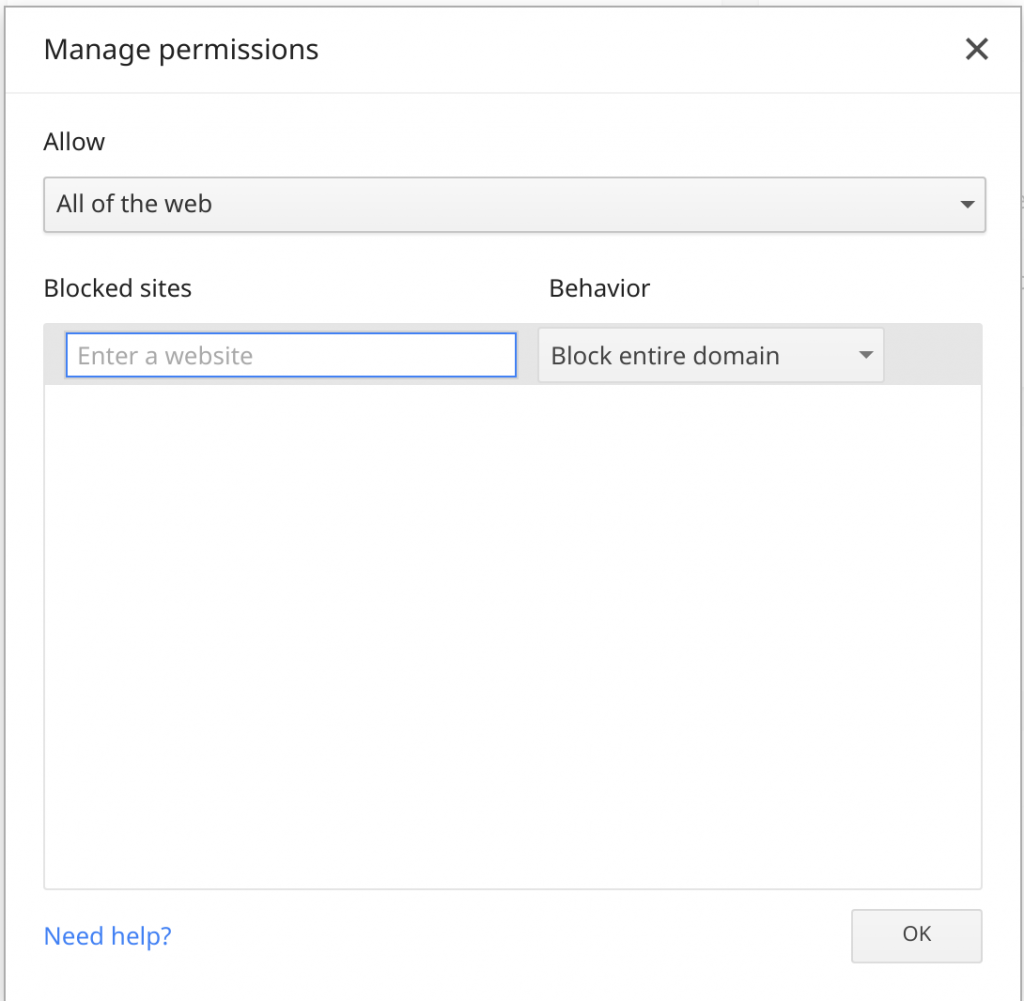
You can either choose to “Allow all of the web” and then pick certain websites to add to the block list; or you can choose to allow “Only approved sites”, and pick certain websites the user is allowed to view.
You can also change the users password, and flip SafeSearch on/off.
As of right now, that’s all you can do with a supervised user. Keep in mind, a supervised user is not able to add Chrome apps/extensions from the Chrome Web Store. All they can do, is browse the web.
How do I create a Supervised User?
Before you create the supervised user, you’ll need to decide exactly which Google account you want to mange the user from.
Note: As of right now, only one account can manage a supervised user at a time. There’s no way to add an additional “admin”. If you’re a parent, you may want to consider creating a new, separate account that you and your spouse both have access to and manage the supervised user from that account. Otherwise only one of you will have access to manage the supervised user.
Once you’ve decided which account to manage the supervised user from, make sure that account is added to your Chromebook. If it’s not, add it.
Go ahead and logout of your Chromebook, so that you’re looking at the sign in screen. You should see all the accounts that you’ve added to this device, as well as a menu at the bottom with options like “shut down”; “browse as guest”; “add user”; and a little 3 dot icon that is the universal “more options” icon.
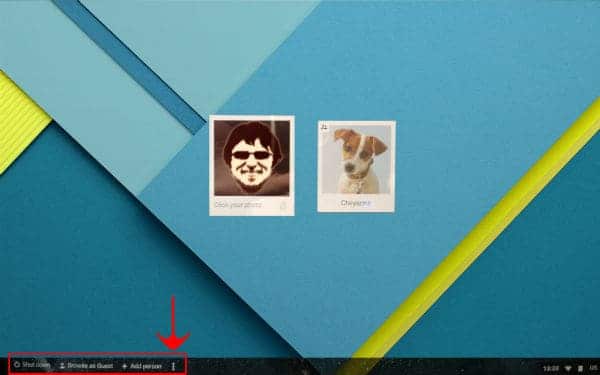
Click on that three dot icon, and select “add supervised user”. You should be presented with this screen:
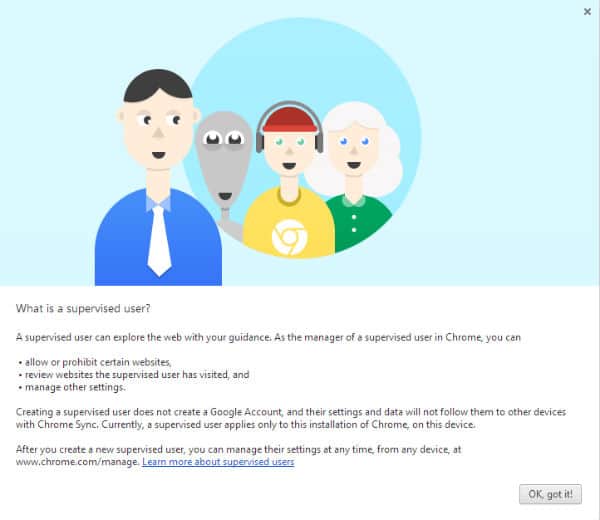
Go ahead and click “OK got it”.
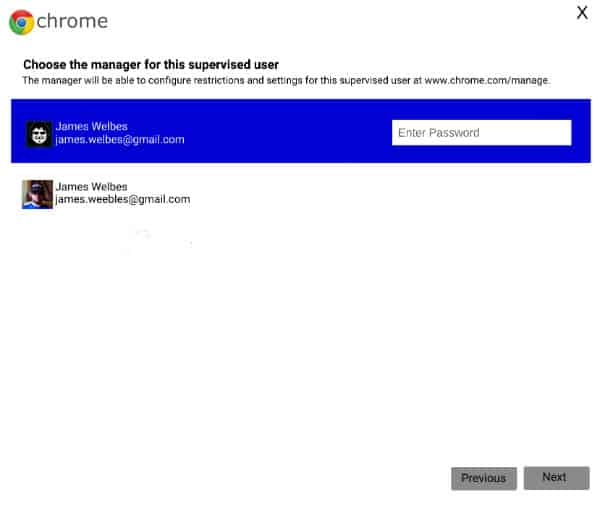
Find the account from which you will be managing the supervised user, enter the password and click next:
Now you can give the supervised user a name, a password, and a profile icon.
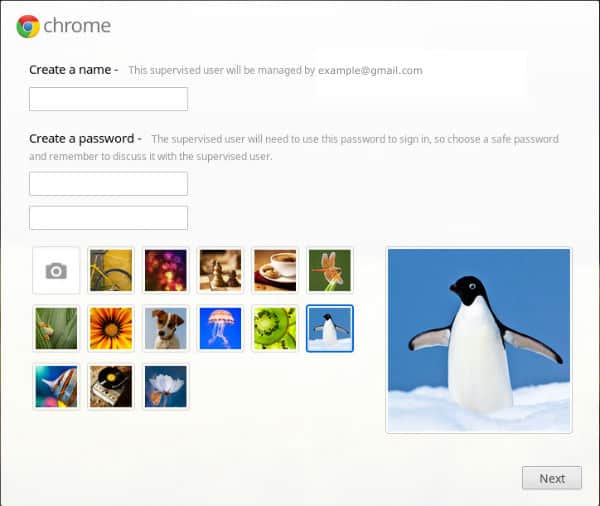
Once you click next, you’ll get the spinning loading icon for awhile. Sometimes, a long while. When I did it, I actually got a little red error message that said something like “this is taking longer than usual”. Just keep waiting. Walk away for a bit. It will finish eventually.
How do I manage a Supervised User?
Once you’ve created your supervised user, you’ll want to know how to do things like view the user’s browser history, how to add websites to the allowed/blocked lists, and how to change the user’s password.
First, you’ll want to make sure you’re logged into the account that has access to the supervised user, then access the Supervised User Dashboard here. (might wanna bookmark that link)
From there, you’ll see a list of all the supervised users that account has access to on the left hand side:
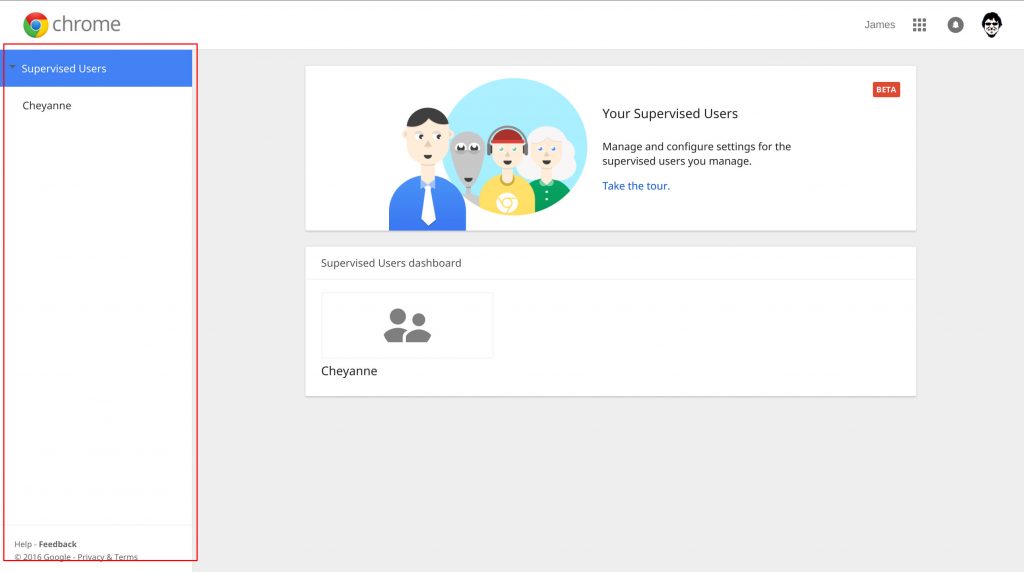
Click on the user you’d like to manage.
From this screen, you can change the user’s password, view their browsing history, and toggle SafeSearch on/off.
If your supervised user requests access to a site that you’ve blocked, you’ll see those requests in the middle, where you can approve or deny them.
To manage the allowed/blocked list, click the “manage” link towards the top-right in the block labeled “permissions”:
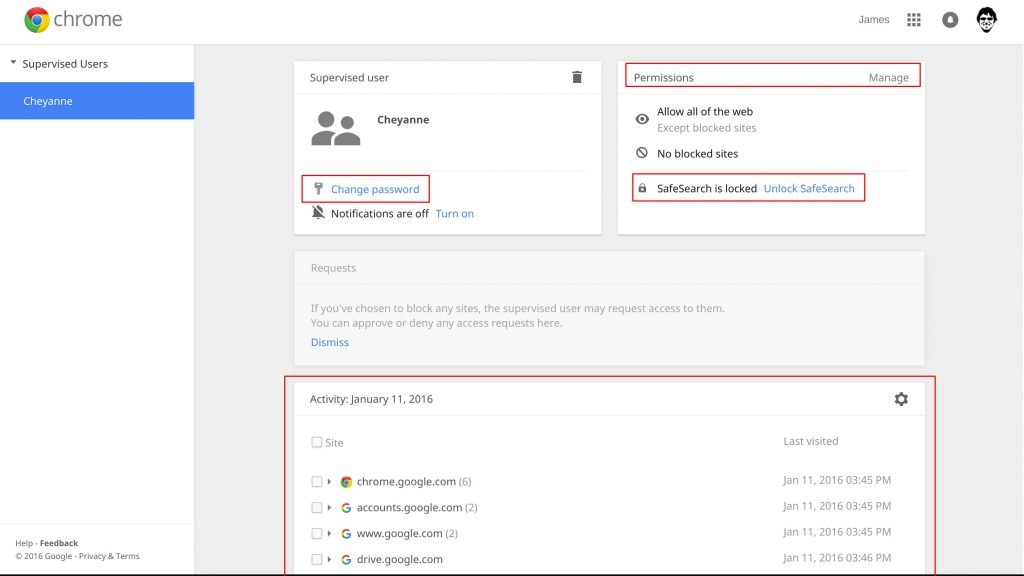
On this screen, you can choose between allowing “All the web” and choosing certain websites to block, OR blocking the entire web and choosing certain websites to allow.